Back to blog
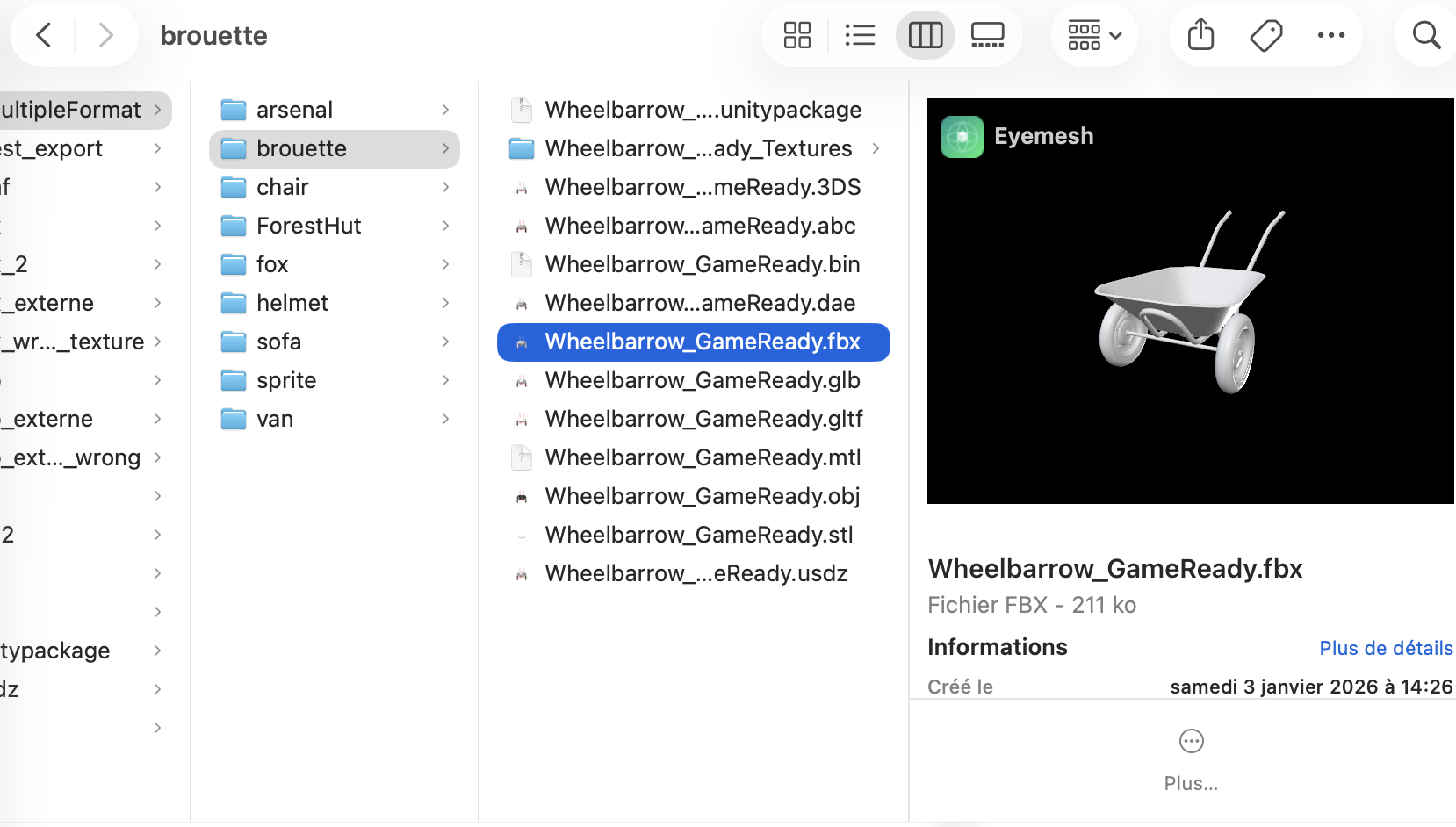
Preview a 3D File in Finder with QuickLook on Mac (Without Opening Any App)
May 18, 2026
You regularly receive 3D files - an FBX from a teammate, a GLB downloaded from Sketchfab, an STL for 3D printing, a USDZ for augmented reality - and every time you need to open a heavy application just to glance at the model. Worse, you don't even know yet whether it's the right file, the right version, or if the geometry is correct. What if you could simply press the spacebar in Finder to instantly see the 3D model appear, exactly like you do for a PDF or an image? That's precisely what QuickLook and the macOS Finder Preview allow - provided you have the right preview generator installed. Here's everything you need to know.
macOS offers two complementary mechanisms to preview a file without opening it in an application:
Both mechanisms rely on the same Apple system API: Quick Look Preview Extensions and Thumbnail Extensions. When an application installs these extensions, it teaches the system how to generate a preview for its file formats - without ever having to be launched by the user.
Apple natively supports QuickLook for a number of formats: PDF, JPEG, PNG, HEIC, MP4, MOV and - since macOS Mojave - the 3D formats USDZ and USDC (Pixar/Apple standards pushed for AR Quick Look and Vision Pro). But the list stops there.
All the other 3D formats - FBX, OBJ, GLB, glTF, STL, PLY, 3DS, 3MF, DAE, ABC, DXF, WRL - are completely ignored. If you press the spacebar on a FBX, you get at best a few file metadata (size, date, path) and at worst a "No preview available" message. In Finder's Icon view, those files display a generic white icon, identical for all of them, without any visual indication of what they contain.
The reason? These formats are either proprietary (FBX is owned by Autodesk), or complex to parse (a GLB can reference dozens of external textures), or historically tied to Windows ecosystems. Apple has simply never supported them at the system level.
The good news is that Apple designed QuickLook to be extensible. Any macOS application can provide a preview generator for its own formats - and that generator is used automatically by the system, even when the application is not running.
Eyemesh is built from the ground up to integrate deeply with macOS. Once installed from the Mac App Store, it registers with the system:
Result: as soon as Eyemesh is installed, all your 3D files become first-class citizens in Finder. Thumbnails in Gallery view, instant preview on spacebar, keyboard navigation between multiple models, mouse rotation inside the QuickLook window - the same comfort of use as with your photos.
Download Eyemesh on the Mac App Store. On first launch, macOS automatically registers the QuickLook and Thumbnail extensions. You don't have to enable anything manually, and no special permission is required. You can then quit the application - previews will keep working even when Eyemesh is not open.
Navigate to a folder that contains 3D files. Click a .fbx, .glb or .obj file to select it, then press the spacebar. A QuickLook window opens instantly and displays the 3D model rendered with neutral lighting. You can:
In a Finder window, choose View → As Gallery (or Cmd + 4). Finder now displays a large preview of the selected file in the top panel, and a navigable strip of thumbnails at the bottom. For a folder full of FBX or GLB files, this is the equivalent of a mini 3D portfolio right inside the system - without opening any app.
In Icon view (Cmd + 1) or Column view (Cmd + 3), every 3D file displays a thumbnail automatically generated by Eyemesh. Very handy to quickly distinguish multiple versions of the same model or to find a specific asset in a production folder.
Once Eyemesh is installed, QuickLook and Finder Preview work for the following 15 formats:
You're working on a game, animation or arch-viz project with hundreds of FBX files exported by different collaborators. Rather than opening each file one by one in Maya or Blender, browse in Gallery view and use the arrow keys to jump from one model to the next. In thirty seconds, you've spotted the right asset.
A vendor sends you an STL for validation before 3D printing. Download it, select it in Finder, press space. You immediately see whether the geometry matches the order, without having to launch a slicer or CAD application.
Your design iterations are named character_v01.fbx, character_v02.fbx, character_v03.fbx. Select the three files, press space, navigate with the left/right arrows: you compare the versions visually without loading three Blender sessions.
The client stops by your desk and you want to quickly show them the render of a 3D asset. No need to explain how to navigate Cinema 4D - open Finder, space on the file, it rotates, it's crystal clear.
QuickLook preview is ideal for quick checks: verify, identify, compare, present. It's instant, uses almost no memory, and doesn't disrupt your workflow.
As soon as you want to go further - inspect the scene hierarchy, check PBR materials, measure a model, change lighting, convert to another format, export a turntable video - it becomes worth opening the file directly in Eyemesh. The transition is one click from the QuickLook window ("Open with" button) or a double-click on the file if you've set Eyemesh as the default app.
No. macOS generates thumbnails in the background and caches them once - subsequent displays are nearly instant. On an Apple Silicon Mac (M1, M2, M3, M4), rendering a 3D thumbnail typically takes less than a second, even for complex files.
The Finder preview shows the model with a default neutral material. To inspect textures, open the file in Eyemesh - the Texture Manager lets you manually point to the right images if needed.
Yes. The Eyemesh Quick Look Preview Extension is used by every macOS app that calls the standard Quick Look API. That includes Mail (attachment preview), Messages, Notes, AirDrop, and even compatible third-party apps.
No. The QuickLook and Thumbnail extensions are managed by a separate system process (quicklookd) that loads them on demand. Eyemesh can be fully quit, previews will keep working normally.
If a thumbnail looks corrupted or you've just installed Eyemesh and old files still show a generic icon, you can flush the QuickLook cache by opening Terminal and typing qlmanage -r cache then qlmanage -r. macOS will regenerate the thumbnails on the next display.
Yes. In System Settings → General → Extensions → Quick Look, you can enable or disable the installed extensions. You keep full control over what the system previews.
Once you've spotted the right file with Finder preview, you can open it in Eyemesh to go further: detailed inspection, conversion to other formats, render image or turntable video export. A few related guides:
To sum up: with Eyemesh installed, your Mac finally becomes a native 3D environment. No more need to open Blender, Maya or Cinema 4D just to glance at a file - the Finder spacebar is enough. It's the smoothest possible macOS experience for anyone working with 3D models regularly, and it's exactly what Apple envisioned almost twenty years ago when it created QuickLook: see any file, immediately, without friction.